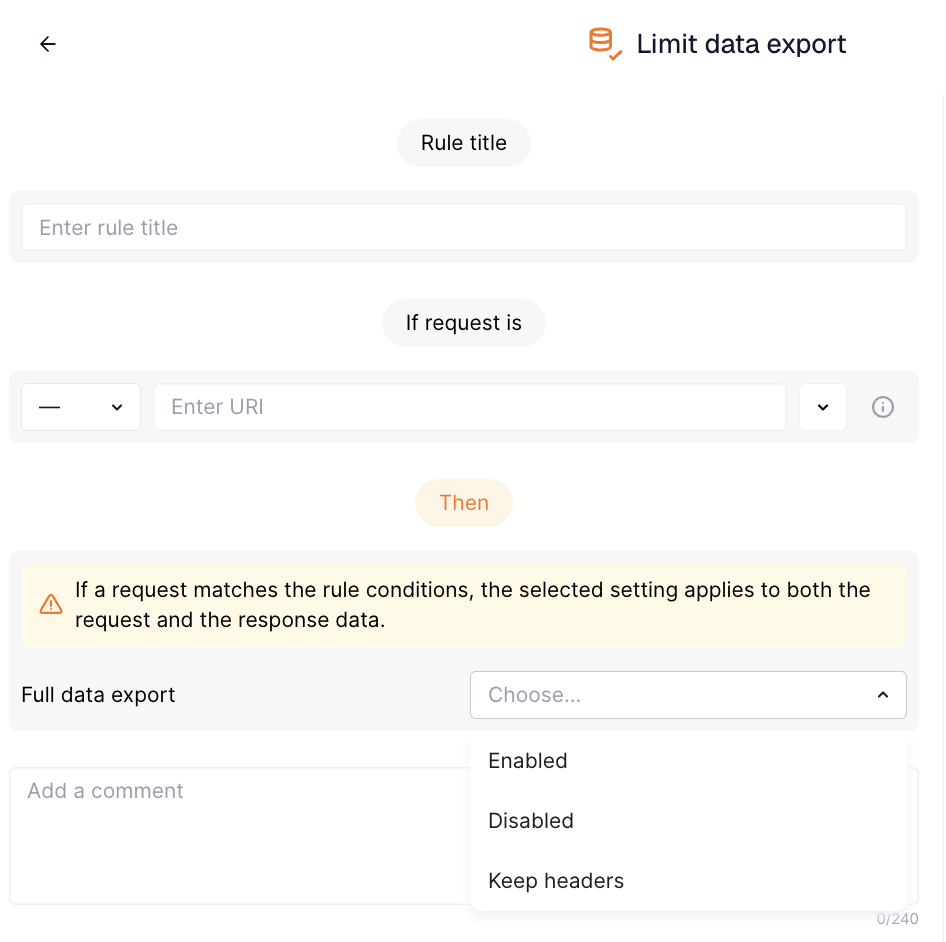
Limiting Data Export
The Limit data export rule controls whether Wallarm Nodes export full request and response data to the Wallarm Cloud. It allows configuring the export mode per endpoint - either full data or metadata only. This article describes how to use this rule.
Overview
In the hybrid Wallarm installations, when you manage the Wallarm Nodes in your infrastructure, and Wallarm manages the Wallarm Cloud component, you decide how much of your traffic data leaves your infrastructure. Wallarm provides full visibility of what data is sent from Node to Cloud and a set of tools to shape this transfer to your needs - limiting data export is one of these tools.
A Limit data export rule applies to the traffic matching its conditions, so you can keep full export for most of your API and reduce it for the endpoints that carry the most sensitive data.
Export modes
The export mode is set by the Full data export value:
| Full data export | What the Node exports |
|---|---|
| Enabled | Full request and response data. |
| Disabled | Metadata only: the request method, URI, IP address, HTTP status code, request time, and the Host header. The body, query parameters, and other headers are excluded from both requests and responses. |
| Keep headers | Metadata and headers. |
If a request matches the rule conditions, the selected setting applies to both the request and the response data.
Side effects
Limiting export reduces the data available for analysis, so consider that it can affect:
-
The API Sessions data
-
The security issues data
-
The accuracy of Threat Replay Testing
To exclude only specific parameters identified as containing sensitive data, such as passwords or tokens, use the Mask sensitive data rule instead - it cuts the values of the specified request points and keeps the rest of the data exported.
Creating and applying rule
To set the export mode:
-
Proceed to Wallarm Console:
- Rules WAF → Add rule or your branch → Add rule.
- Attacks / Incidents → attack/incident → hit → Rule.
- API Discovery (if enabled) → your endpoint → Create rule.
-
Choose Limit data export.
-
In If request is, describe the scope to apply the rule to.
-
In Then, set Full data export to the required mode.
-
Wait for the rule compilation and uploading to the filtering node to complete.